SVG to JPG Converter and the Modern Browser Media Toolkit for 2026
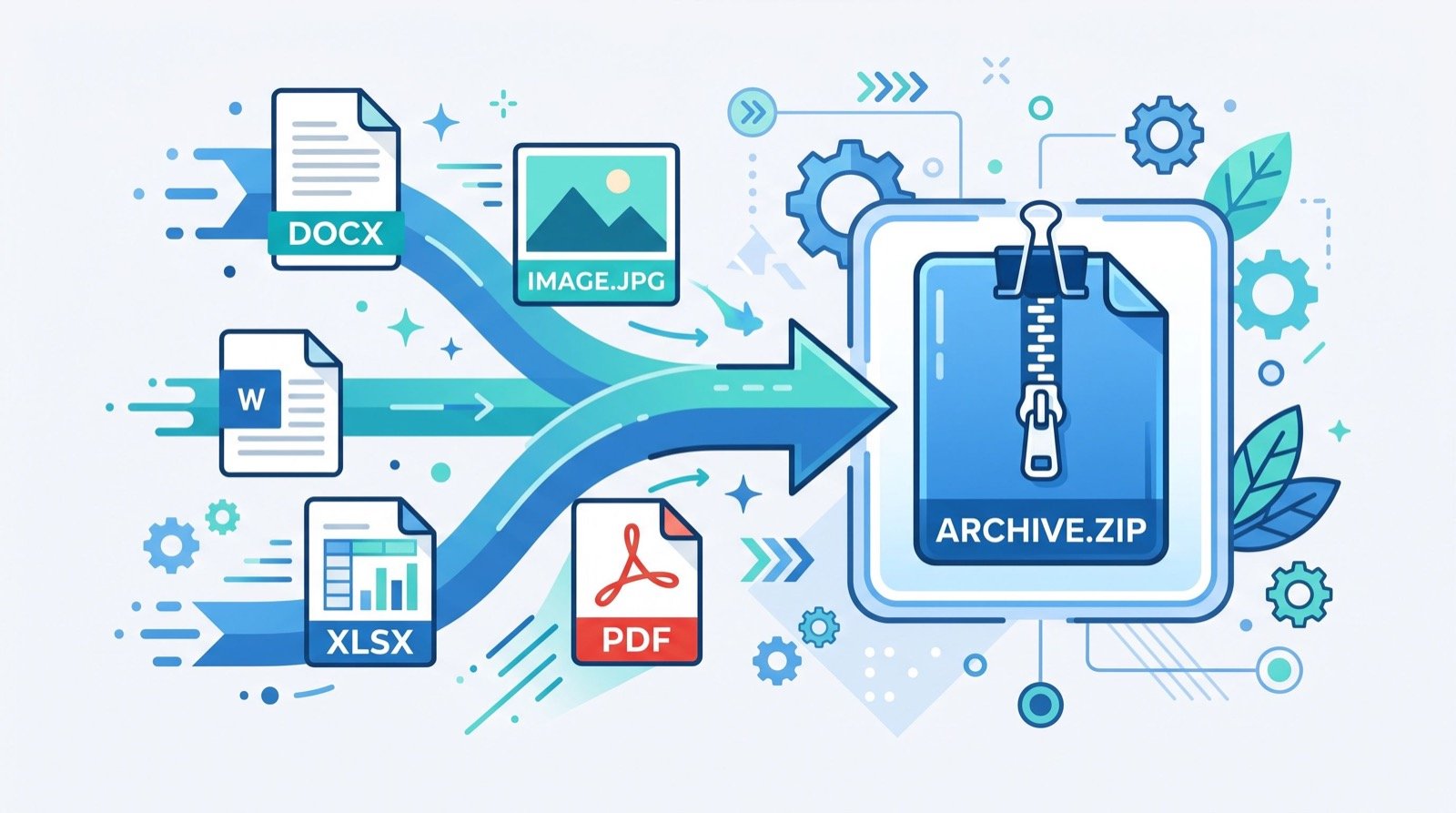
Content creators today juggle logos, screenshots, product photos, and video clips, often within a single afternoon. The old answer was a sprawl of desktop software; the 2026 answer is a handful of fast browser utilities. At the center of that toolkit sits a reliable SVG to JPG converter, the quiet workhorse that turns crisp vector artwork into universally compatible images the moment a platform refuses to accept a vector file.
This article looks at where image conversion fits inside a complete, no-install media workflow, how to keep quality high across formats, and why running everything in the browser has become the smart default for creators and small teams.
Why Browser-Based Media Tools Won
Installing a heavyweight editor just to flatten one logo or trim a few seconds of video always felt like overkill. Browser tools changed the math. They open instantly, require no license, and increasingly process files locally so your assets never leave your device.
That shift matters most for speed. When a tool loads in a tab and finishes in seconds, conversion stops being a chore you batch for later and becomes a natural part of publishing. The result is cleaner assets and fewer last-minute compromises.
The Core Formats You Will Convert
Understanding what each format is good at prevents the frustration of a blurry upload or a bloated page. Here is a quick reference.
| Format | Type | Shines at |
|---|---|---|
| SVG | Vector image | Logos and icons that must stay sharp |
| JPG | Raster image | Photos and universally accepted uploads |
| PNG | Raster image | Graphics needing transparency |
| MP4 | Video container | Clips for web and social |
The practical takeaway is to keep editable masters, SVG for graphics and the original high-bitrate file for video, then export flattened, compressed copies only when a destination demands them.
Converting SVG to JPG the Right Way
SVG stores shapes as math, so it scales forever without blur. JPG stores pixels, so it works everywhere. Converting means rasterizing the vector at a resolution you choose, then flattening transparency because JPG has no alpha channel.
Three habits keep your output clean:
- Pick resolution deliberately. Since SVG is resolution-free, you decide the pixel size. Aim slightly larger than the display dimension.
- Set the background on purpose. Transparent areas fill with a color, usually white, so choose one that matches the destination.
- Compress before upload. Around 85 to 90 percent quality is visually identical yet far smaller.
How Much Resolution Do You Really Need?
Oversized images slow pages and hurt Core Web Vitals, while undersized ones look soft. A good middle ground for in-body blog images is 1200 to 1600 pixels wide; social thumbnails do well at 1200 by 1200. Google’s own guidance on image performance, available through the Google PageSpeed documentation, continues to reward correctly sized, compressed images in 2026.
Beyond Images: Adding Video to the Mix
Media work rarely stops at still images. Short clips now anchor product pages, tutorials, and social feeds, and they often need quick adjustments before publishing. One of the most requested tweaks is pacing. Being able to change video speed online lets you tighten a slow demo, create a crisp time-lapse, or slow a motion sequence for emphasis, all without opening a full editing suite.
Speed changes pair naturally with conversion habits. Just as you flatten a vector only when needed, you adjust a clip’s pace and export a web-friendly copy while keeping the untouched original safe. The pattern is identical: preserve the master, publish an optimized derivative.
A Repeatable Media Workflow
- Collect masters. Keep vectors and full-quality video in a source folder.
- Convert on demand. Export JPGs and trimmed clips only when a platform requires them.
- Optimize. Compress images and clips to balance quality and load time.
- Name descriptively. Use keyword-relevant filenames and alt text for discoverability.
- Verify. Preview on both desktop and mobile before publishing.
A Field Tip: Always Keep the Master
The single most valuable habit across every media task is preserving the original. It sounds obvious, yet overwritten masters cause more wasted hours than any other mistake. Once you flatten an SVG to JPG or re-encode a video at a lower bitrate, that detail is gone for good. There is no way to recover infinite scalability or lost frames from a compressed export.
The discipline is simple: treat every master as read-only. Keep vectors and full-quality clips in a clearly labeled source folder, and export derivatives into a separate output folder named by destination, such as exports/instagram or exports/blog. When a platform later wants a bigger image or a different crop, you re-export from the master in seconds instead of starting over.
This separation also makes collaboration safer. A teammate can grab an export without any risk of clobbering the irreplaceable source. Across hundreds of projects, this one rule has prevented more panic than any other.
When a Specialist Adds Value
Self-serve tools cover the vast majority of everyday media tasks. For high-stakes work, a brand launch, a polished promotional video, or strict print output, an experienced local team can elevate results with color grading, motion design, and quality control that automation alone cannot match. Use tools for speed and experts for the showcase pieces.
Frequently Asked Questions
Does converting SVG to JPG lose quality?
Not at normal viewing sizes if you export at a generous resolution and moderate compression. The only genuine loss is scalability, since the JPG becomes fixed-resolution. Keep your SVG master so you can always re-export at a larger size later.
Can I convert images and edit video in the same browser session?
Yes. Browser-based tools are independent, so you can flatten a logo in one tab and adjust a clip’s speed in another. Because many process files locally, you can move between tasks quickly without uploading sensitive assets to a server.
Why does my JPG look different from the SVG?
Two things usually cause it: transparency being filled with a background color, and the chosen export resolution. Set an intentional background and export at a size slightly larger than the display dimension to keep the result faithful to the original.
Is it safe to use free online media converters?
Tools that explicitly process files in your browser never upload your media, which makes them safe even for unreleased work. Favor utilities that state local processing and do not require an account to download your finished file.
Final Thoughts
A dependable SVG to JPG converter, combined with quick video adjustments and smart compression, forms the backbone of a lean 2026 media workflow. Keep your masters, export optimized derivatives only when needed, size everything intentionally, and lean on specialists for the showcase pieces. Build that rhythm and your images and clips will stay sharp, fast, and ready for any platform.